A practical checklist for reviewing AI video captions
Check wording, timing, contrast and framing before publishing captioned video. Learn what to review after automatic transcription in Revline.
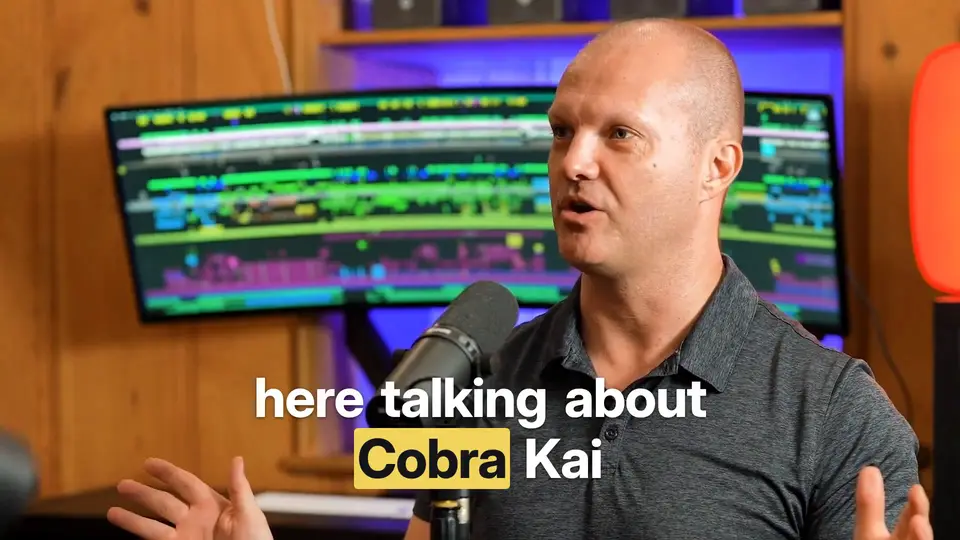
Correct the transcript before styling it
Automatic captions are a first draft of what was said. A fluent-looking sentence can still contain the wrong name, number or technical term. Listen to the recording while reviewing the text, especially when speakers overlap, music is loud or the subject uses unfamiliar vocabulary.
Keep a short list of important names and terms next to the edit. Check them consistently across the video. When speech is unclear, revisit the audio rather than replacing it with a plausible guess. Captions should represent the recording, including qualifications that matter to the speaker’s meaning.
Group words into readable phrases
Watch the captions at normal playback speed. Each phrase needs enough time to be read without continuing long after the speaker has moved on. Break a long sentence at a natural phrase boundary instead of leaving a large block of text that competes with the picture.
In Revline, ask for the caption style you want in the editing conversation and then review the result on the timeline. A useful starting request is “Add minimal captions with no background, and keep them away from the speaker’s face.” Adjust the wording or timing when the first pass does not fit the footage.
Choose contrast that works throughout the shot
White text can look clear on one frame and disappear when a bright object moves behind it. Inspect several points in a shot, especially during camera movement or transitions. A restrained outline, shadow or background may improve readability when plain text is not enough.
Use a consistent hierarchy. An accent color can identify a meaningful word, but changing every word’s appearance creates more work for the viewer. Match the style to the video’s purpose rather than adding animation just because it is available.
Review the actual output at phone size
Keep subtitles clear of faces and important demonstrations. Leave space for the interface of the platform where the video will appear. Previewing at a narrow width helps reveal lines that wrap awkwardly or type that looked larger in the editor than it will on a phone.
Export a captioned version and watch it from beginning to end with sound, then once with sound off. Check the opening, names and numbers, rapid speech and the last caption. Text that is correct in the editor can still be uncomfortable to read at the final size, so judge the delivered video too.
Prepared with AI assistance from Revline’s editing workflows.